Finished demo
We provide a finished version of the custom integration that you can get running in your preferred environment.
Start web apps
This demo involves two web apps: Uniform configuration app and a demo app. You can run these apps in the environment of your choice.
- StackBlitz
- Local machine
Add the following permissions to your Uniform API key:
Uniform Canvas > Compositions > Create
Uniform Canvas > Compositions > Publish
Uniform Canvas > Compositions > Update
caution
You should always assign the minimal permissions required to meet your requirements. Since this you are going to load configuration from a code repository into Uniform, you need permissions to write to Uniform.
For more details on permissions, see the administrator guide.
- Open StackBlitz to create your development environment.
After you open StackBlitz you will see an error in the terminal that environment variables are not set. You must set the variables in
apps/demo-monsterpedia/.envto match the settings that apply to your Uniform project.Changing the
.envfile should cause the container to restart. If it doesn't, enter the following command in the StackBlitz terminal:npm run dev:basicOpen a new StackBlitz terminal.
info
You must open a new terminal because the default terminal is running the web apps.
Enter the following command:
npm run canvas:basic:pushIn the activity bar the plug icon indicates that 2 ports are in use. Click this icon.

You will see links to the web apps running on the 2 ports. Click the link for Port 4030.
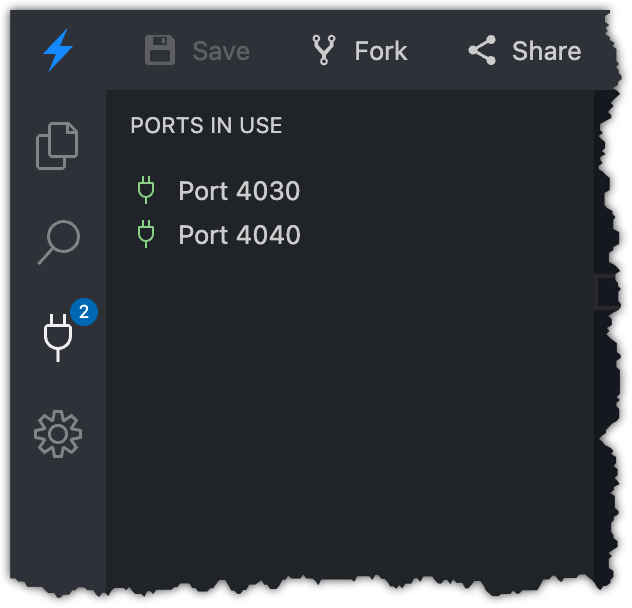
A new browser tab opens. Copy the host name. It will be something like the following. You will need this value in a later step.
https://uniformdev-uniform-mesh-tutorials-######--4030.local.webcontainer.io/info
An error will be displayed in the browser tab. This is expected behavior because the configuration app can only run inside the Uniform dashboard.
Close the browser tab.
Click the link for Port 4040.
A new browser tab opens. Copy the host name. It will be something like the following. You will need this value in a later step.
https://uniformdev-uniform-mesh-tutorials-######--4040.local.webcontainer.io/info
An error will be displayed in the browser tab. This is expected behavior because the composition that is being retrieved is currently in draft mode.
Close the browser tab.
Add the following permissions to your Uniform API key:
Uniform Canvas > Compositions > Create
Uniform Canvas > Compositions > Publish
Uniform Canvas > Compositions > Update
caution
You should always assign the minimal permissions required to meet your requirements. Since this you are going to load configuration from a code repository into Uniform, you need permissions to write to Uniform.
For more details on permissions, see the administrator guide.
Enter the following commands:
git clone https://github.com/uniformdev/examples
cd examples
cd examples/docs/custom-integrations/basic/nextjs/finished
Set the variables in
apps/demo-monsterpedia/.envto match the settings that apply to your Uniform project.Open a command-line interface (CLI) in the root folder for the repository.
Enter the following command:
npm installEnter the following command:
npm run canvas:basic:pushEnter the following command:
npm run dev:basic
Register custom integration
- Follow the steps to register your custom integration.
- Assign the custom integration to your project.
Confirm use cases work
In Uniform, navigate to Settings > Monsterpedia.
Click Test.
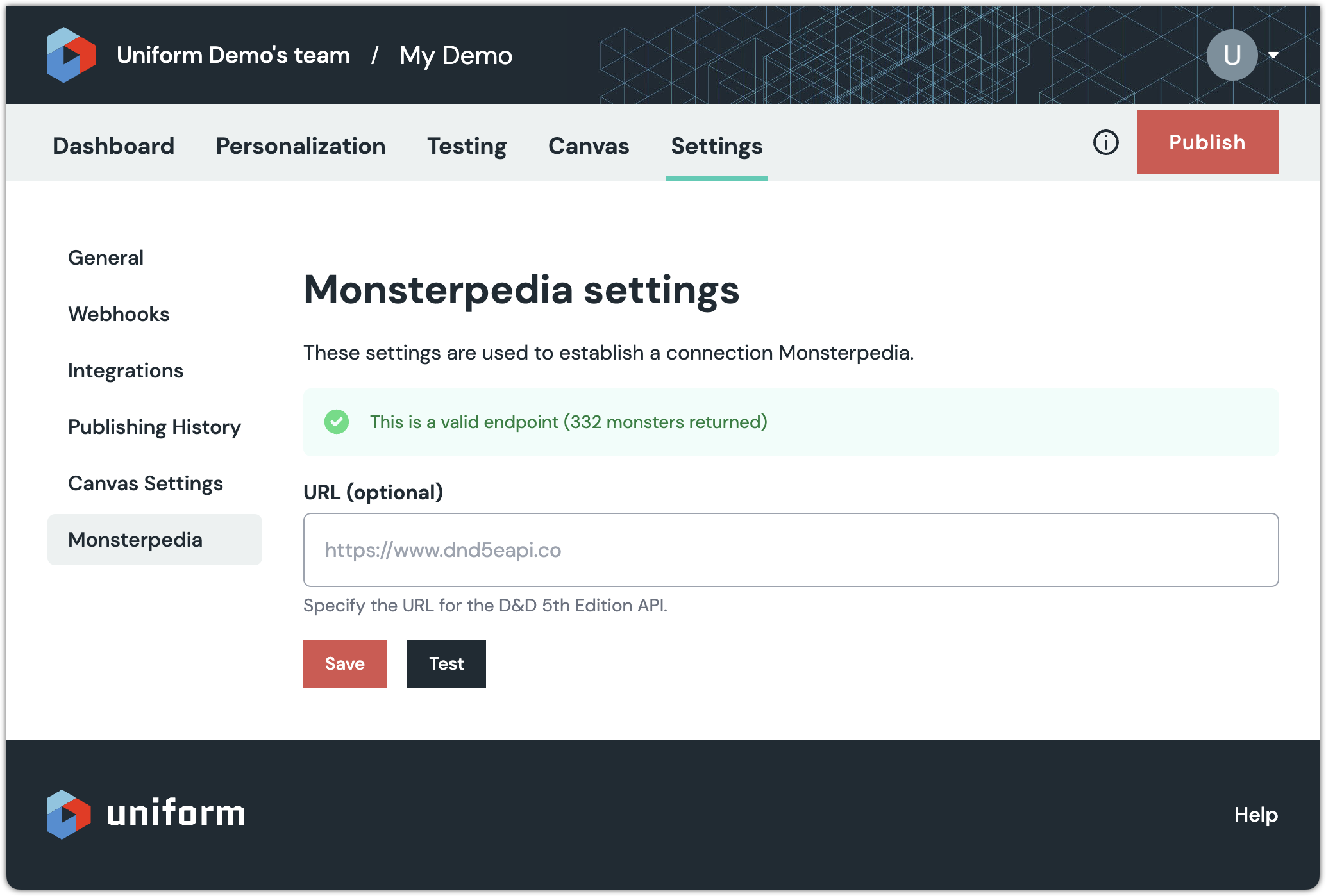
Navigate to Canvas > Compositions.
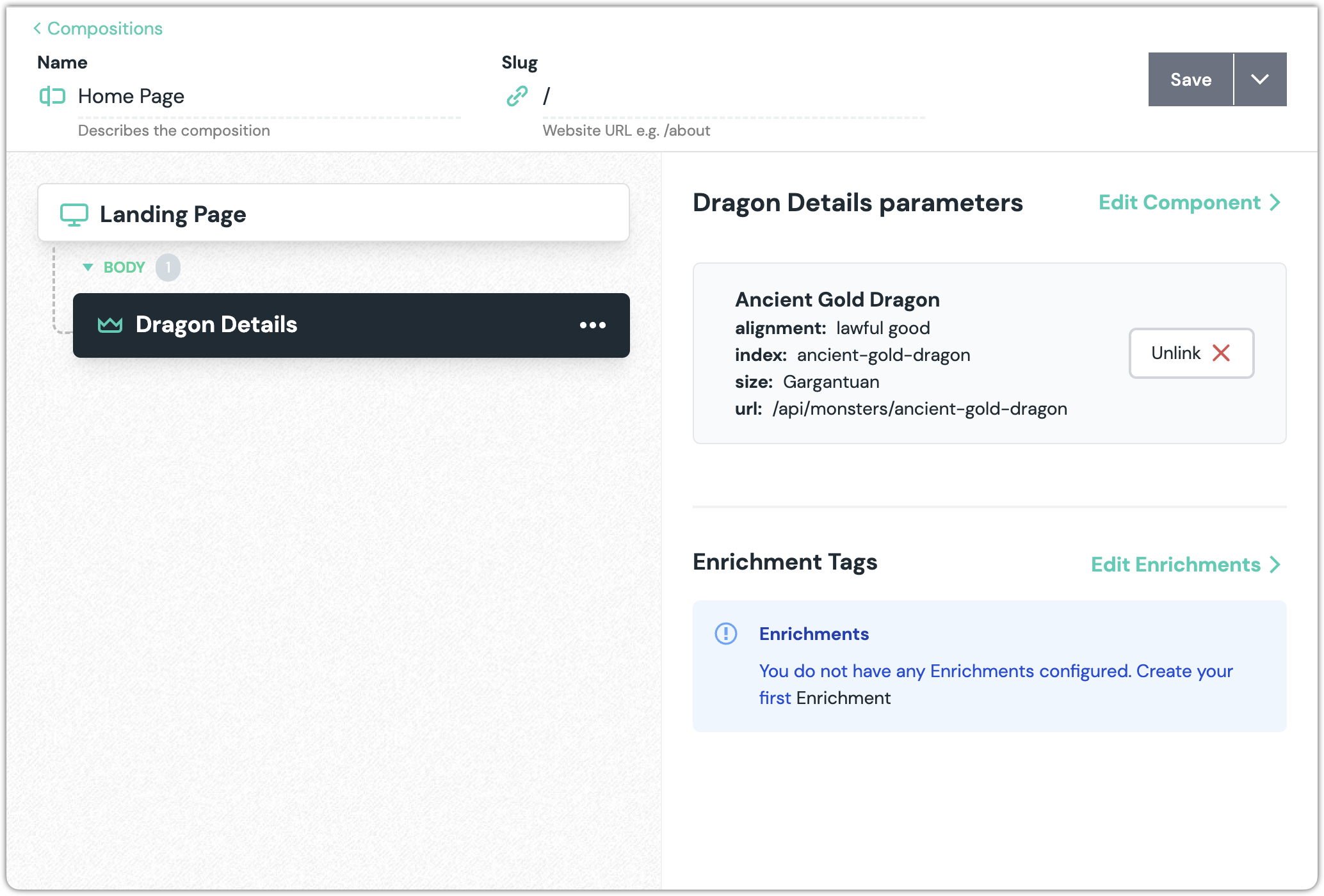
Click Home Page.
Navigate to Landing Page > Dragon Details.
info
You will see that Ancient Gold Dragon is selected for the parameter Dragon. The dropdown list for this parameter is populated by a call to the API for the external system.
Publish the composition.
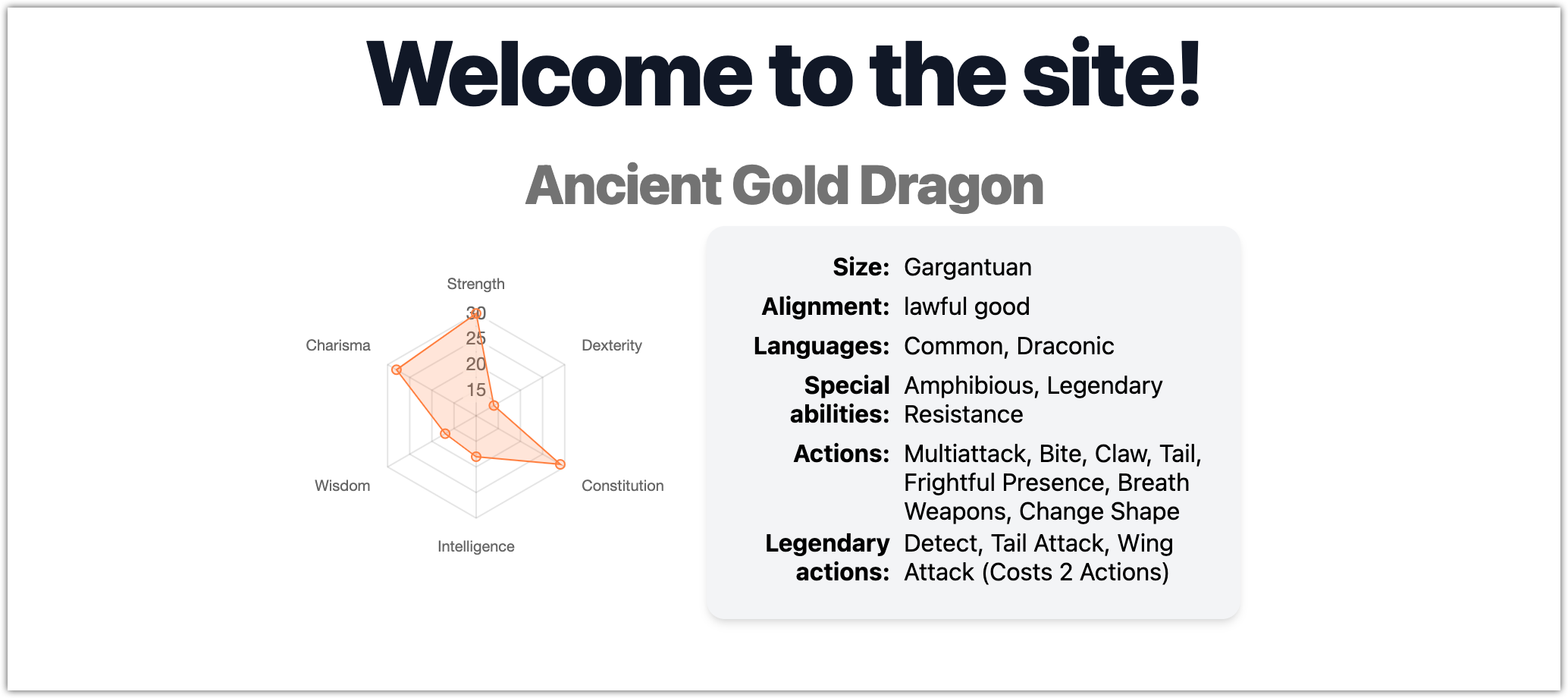
Open the demo app.
info
You will see details about the selected dragon.