Add Uniform integration
Adding the Sitecore XM/XP integration to your Uniform project adds new parameter types that you can add to your Uniform Canvas components.
Configure Sitecore
Sitecore must be configured in order to expose its content to Uniform Canvas.
Configure Sitecore Services Client
Uniform uses the Sitecore Services Client (SSC) to read content from Sitecore, so SSC must be enabled and configured.
- Sitecore 9.1.0 (or greater)
- Sitecore 9.0.2
- Sitecore 8.2
- If SSC is not enabled, you must enable it. The following is an
example of a config file that enables SSC:
<?xml version="1.0" encoding="utf-8" ?>
<configuration xmlns:patch="http://www.sitecore.net/xmlconfig/">
  <sitecore>
      <settings>
          <setting name="Sitecore.Services.AllowAnonymousUser" value="true" />
          <setting name="Sitecore.Services.AllowItemServiceAnonymousUser" value="true" />
          <setting name="Sitecore.Services.SecurityPolicy" value="Sitecore.Services.Infrastructure.Web.Http.Security.ServicesOnPolicy, Sitecore.Services.Infrastructure" />
      </settings>
  </sitecore>
</configuration> - In Sitecore, open Content Editor.
- Open the
masterdatabase - Navigate to sitecore > system > Settings > Services > API Keys.
- Add the following item:
- Template:
API Key - Name:
Uniform API Key
- Template:
- Set the following field values:
- CORS Origins:
https://uniform.app - Allowed Controllers:
Sitecore.Services.Infrastructure.* - Impersonation User: Name of a Sitecore user with access
to site items,
/sitecore/system/Languages,/sitecore/templatesand/sitecore/system/Uniform(for example,sitecore\admin)
- CORS Origins:
- Save the item.
- Publish the item.
- Note the item ID. This is your Sitecore API key. You will need this value later.
- If SSC is not enabled, you must enable it. The following is an
example of a config file that enables SSC:
<?xml version="1.0" encoding="utf-8" ?>
<configuration xmlns:patch="http://www.sitecore.net/xmlconfig/">
  <sitecore>
      <settings>
          <setting name="Sitecore.Services.AllowAnonymousUser" value="true" />
          <setting name="Sitecore.Services.AllowItemServiceAnonymousUser" value="true" />
          <setting name="Sitecore.Services.SecurityPolicy" value="Sitecore.Services.Infrastructure.Web.Http.Security.ServicesOnPolicy, Sitecore.Services.Infrastructure" />
      </settings>
  </sitecore>
</configuration> - In Sitecore, open Content Editor.
- Open the
coredatabase. - Navigate to sitecore > system > Settings > Services > API Keys.
- Add the following item:
- Template:
API Key - Name:
Uniform API Key
- Template:
- Set the following field values:
- CORS Origins:
https://uniform.app - Allowed Controllers:
Sitecore.Services.Infrastructure.* - Impersonation User: Name of a Sitecore user with access
to site items,
/sitecore/system/Languages,/sitecore/templatesand/sitecore/system/Uniform(for example,sitecore\admin)
- CORS Origins:
- Save the item.
- Note the item ID. This is your Sitecore API key. You will need this value later.
- If SSC is not enabled, you must enable it. The following is an
example of a config file that enables SSC:
<?xml version="1.0" encoding="utf-8" ?>
<configuration xmlns:patch="http://www.sitecore.net/xmlconfig/">
  <sitecore>
      <settings>
          <setting name="Sitecore.Services.AllowAnonymousUser" value="true" />
          <setting name="Sitecore.Services.AllowItemServiceAnonymousUser" value="true" />
          <setting name="Sitecore.Services.SecurityPolicy" value="Sitecore.Services.Infrastructure.Web.Http.Security.ServicesOnPolicy, Sitecore.Services.Infrastructure" />
      </settings>
  </sitecore>
</configuration> - In Website folder, open Web.config and config CORS header
<system.webServer>
  <httpProtocol>
    <customHeaders>
      <remove name="X-Powered-By" />
      <add name="Access-Control-Allow-Origin" value="https://uniform.app" />
    </customHeaders>
  </httpProtocol>
</system.webServer> - Grant
sitecore\servicesAPIuser with access to site items,/sitecore/system/Languages,/sitecore/templatesand/sitecore/system/Uniform
tip
We also recommend that the user sitecore\servicesAPI have
permissions configured that explicitly deny access to the
remaining parts of content tree. This is the account SSC uses by default
for calls when an API key is not specified.
Configure Sitecore site
Canvas will read content from your Sitecore site, but some configuration is needed. This configuration comes in the form of something called site configuration. The Uniform connector on your Sitecore instance uses the site configuration to determine which Uniform functionality to enable. You must create a site configuration for your web app.
tip
Site configuration can be created using Sitecore config files or Sitecore items. These instructions use Sitecore items. The config file approach is recommended for production environments, but using Sitecore items may be easier for some users during development and testing.
- In Content Editor, navigate to sitecore > system > Uniform > Site Configurations.
- Add the following item:
- Template:
Site Configuration - Name:
websiteinfo
You use
websitehere because this example uses the default Sitecore site. If you have multiple sites on your Sitecore server you must use the appropriate site name.
- Template:
- Add an item using the template
Configure Site. - Select the child item
Configuration. - Set the following field values:
- Inherits:
websiteinfo
You use
websitehere because this example uses the default Sitecore site. If you have multiple sites on your Sitecore server you must use the appropriate site name.
- Inherits:
- Save the item.
- Publish the site.
Add integration
In Uniform, open your project.
Navigate to the Integrations tab.
Scroll to the section Browse Integrations.
Click Sitecore.
Click Add to project.

Enter the required values.
Enter the required fields.
Field Description URL of your Sitecore instance The URL to the root of the Sitecore instance. This must start with https://(unless your Sitecore instance is running onhttp://localhost).Sitecore API key Your Sitecore API key (or any GUID if you use Sitecore 8.2). Site configuration name Your Sitecore site name. This is the name of the `site` defined in a Sitecore config file. (This value is not case-sensitive.) 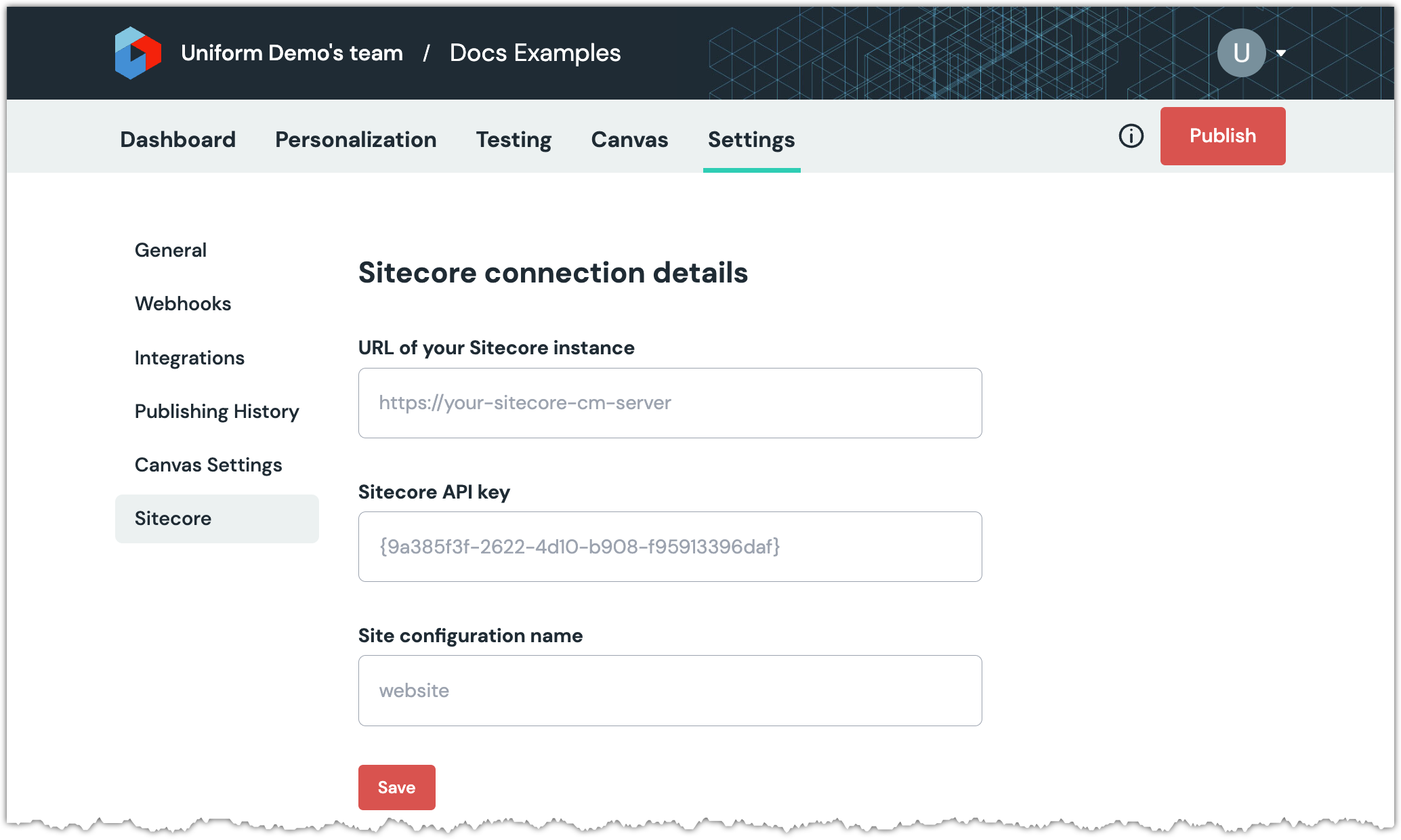
Click Save.
Next steps
Explore the new parameter types that are available when you configure components using Uniform Canvas.