Signals
This section covers how to configure, manage, and use signals to classify visitors.
tip
For background information about what signals are and examples of how they are used, see the classification capabilities section.
Add signal
In Uniform, open your project.
Navigate to Personalization > Signals.
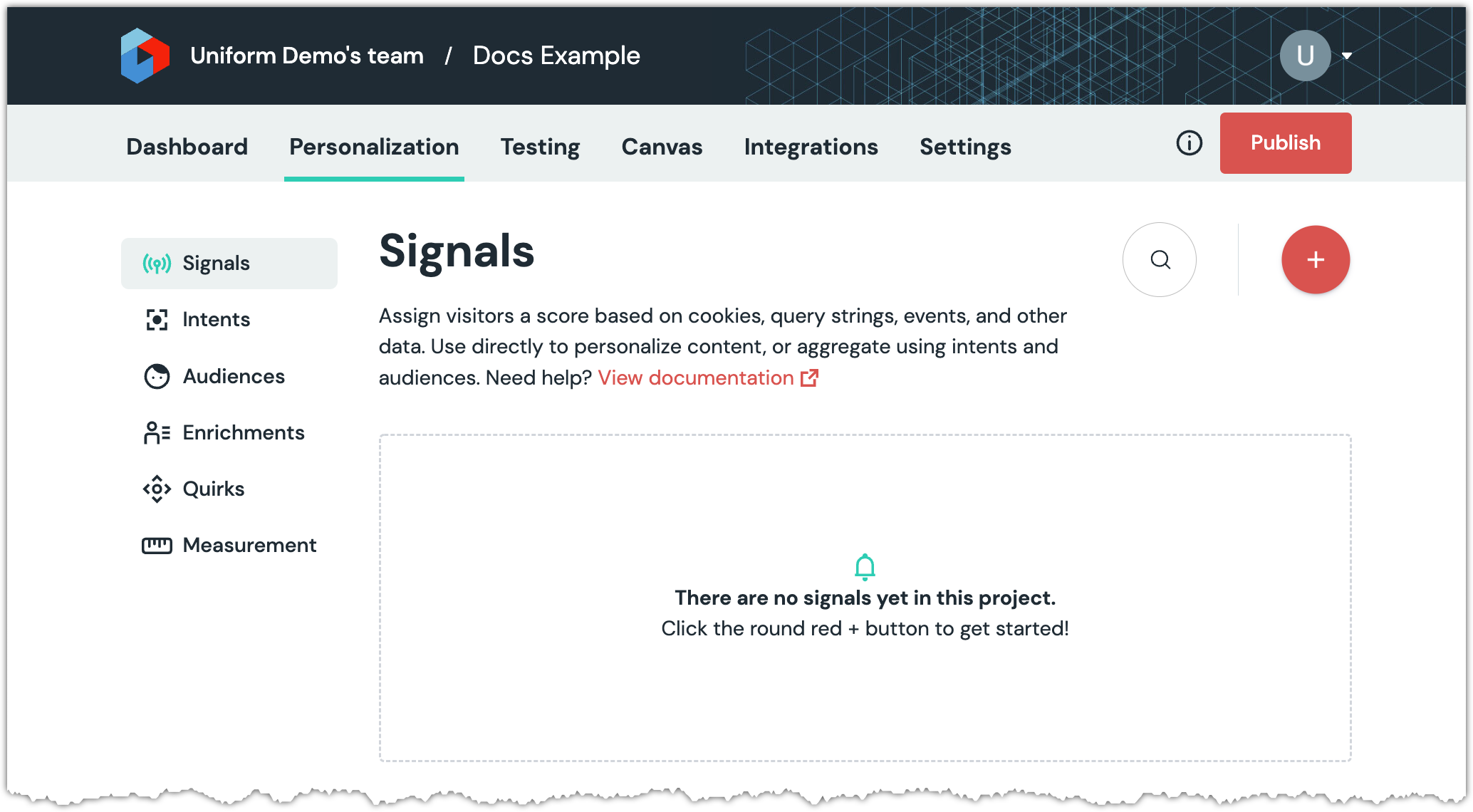
Click the red (+) button.
Enter the following values:
Field Description Name Name that describes the signal. Public ID Value that uniquely identifies the signal. Signal score The Uniform tracker increases the signal score by this value when the signal is triggered. Max score The Uniform tracker will not increase the signal score above this value, even if the signal is triggered. Duration - Current session: Score is reset when a new session begins.
- Permanent: Score persists across sessions.
- Transient: Score is reset before scores are updated.
In the section SIGNAL CRITERIA BUILDER, select a criteria.
About this step
For more information about the available criteria, see the criteria types under capabilities.
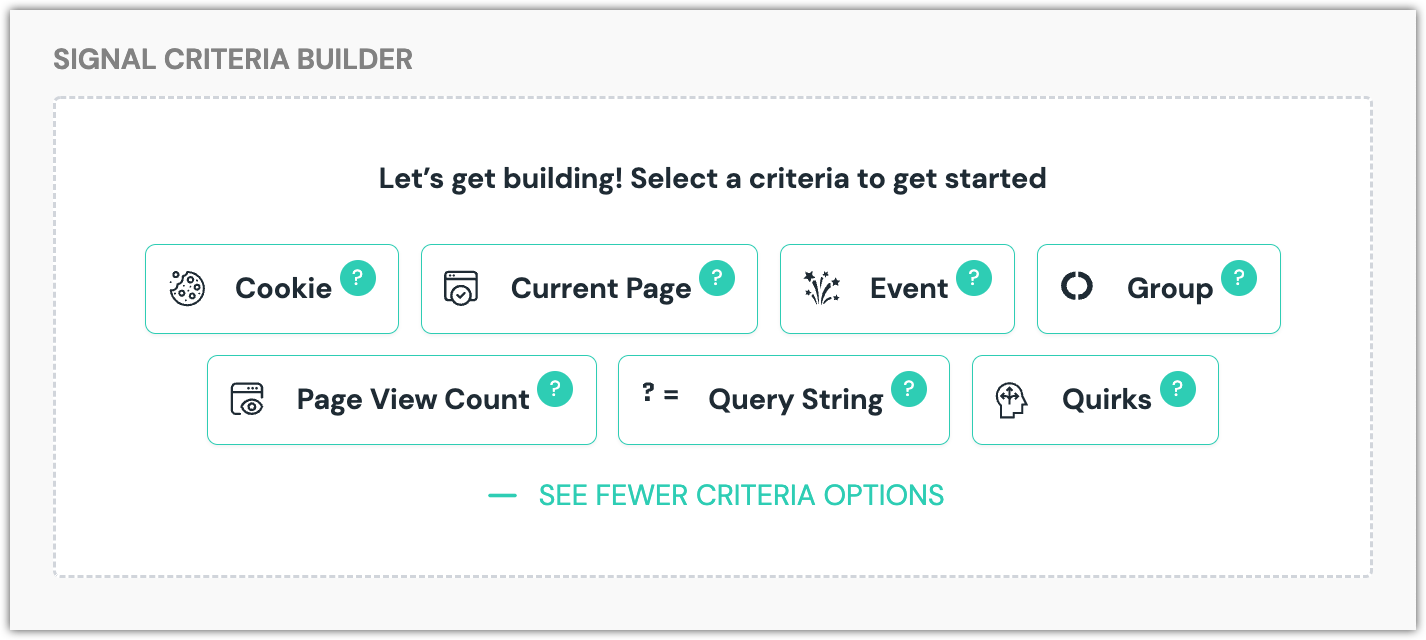
Configure the signal criteria.
About this step
For details about the configuration options for each signal, see the criteria types reference.
You can add additional criteria to your signal if required.
Click Save and close.
Delete signal
In Uniform, open your project.
Navigate to Personalization > Signals.
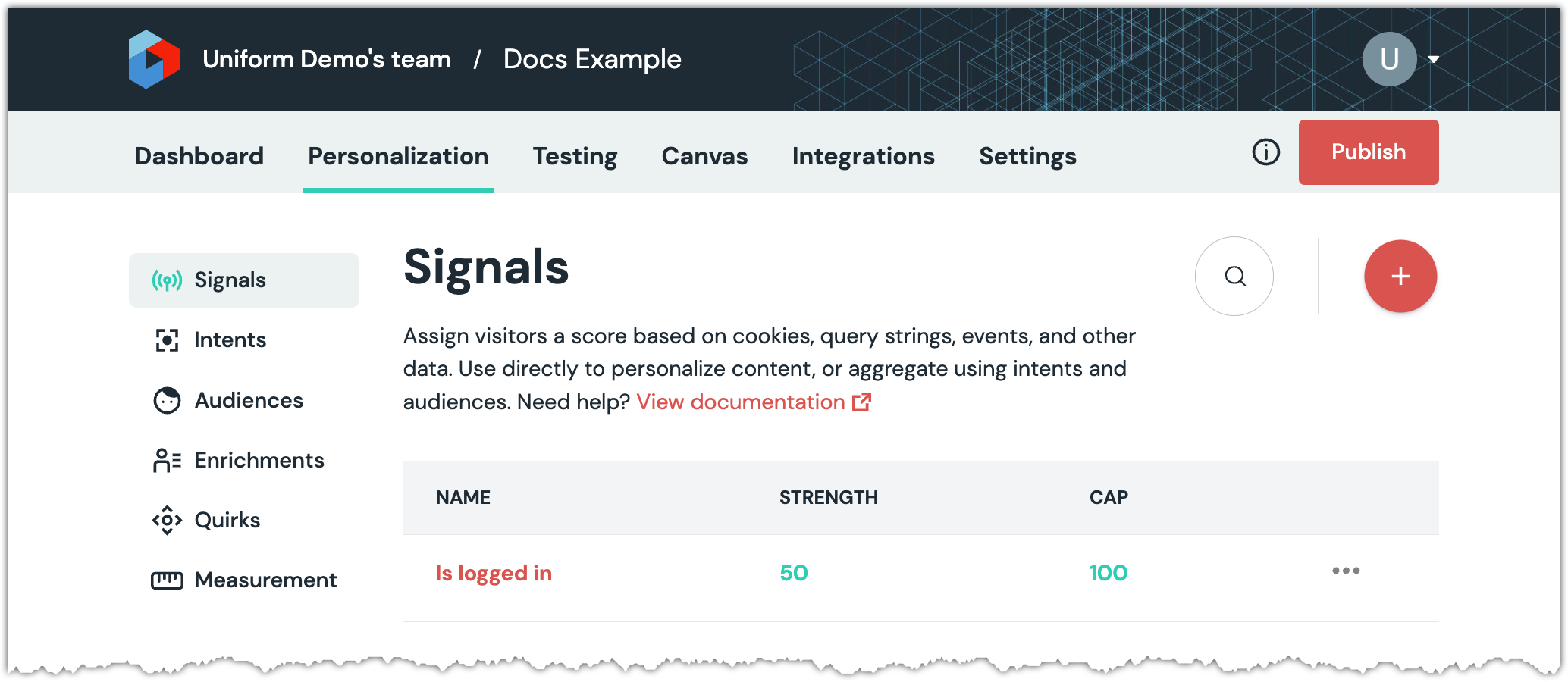
Find the row that represents the signal you want to delete.
Click ... > Delete.
About this step
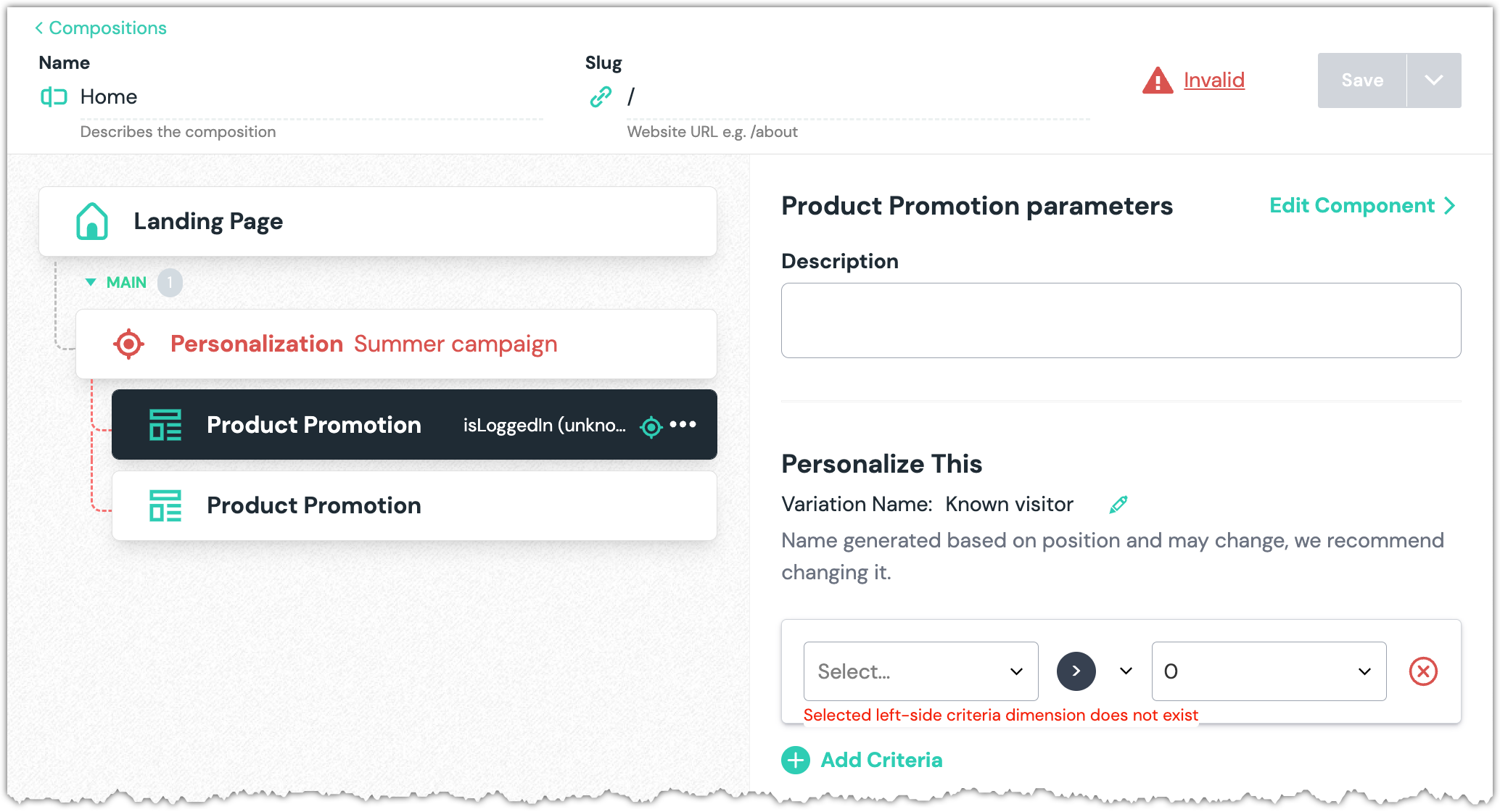
If the signal was used to personalize any composition, when you open the composition you will see an "invalid" message. When you select the component with the personalization you will see an error message about "criteria dimension does not exist".
You must either select another dimension or delete the personalization criteria before you are able to save any changes to the composition.