Use parameters
After you install the Algolia integration, the following parameter types are available. You can use these to incorporate search results from Algolia into your components and compositions.
| Parameter type | Description |
|---|---|
| Algolia Query | Specify search criteria that is used to select a single or multiple records from Algolia. |
| Algolia Record | Select a single or multiple records from Algolia. |
Algolia Query
This parameter type allows a Uniform user to filter and select search results for display.
Add parameter to component
In order to allow a user to configure an Algolia query, you must add a parameter to a component. The parameter is used to store the values that control the search whose results are displayed to the user.
In Uniform, navigate to your component.
Add a new parameter using the parameter type Algolia Query.
The following values can be specified:
Name Description Selected Link Source The index used for the query. Title Field Name A field from the index that can be displayed in parameter editing mode. Sub-Title Field Name A field from the index that can be displayed in parameter editing mode. Image URL Field Name A field from the index that can be displayed in parameter editing mode. Document Updated Date Field Name A field from the index that can be displayed in parameter editing mode. 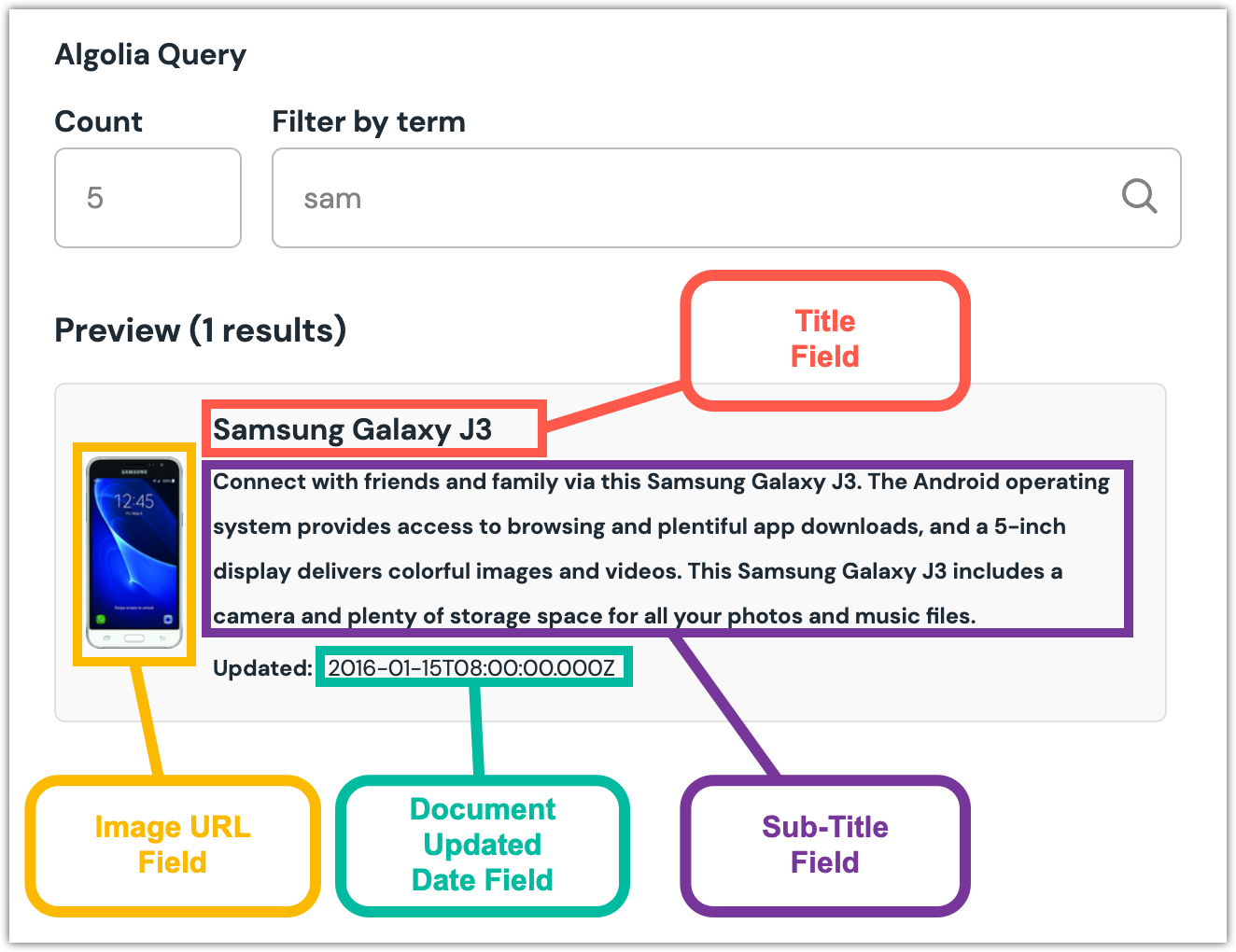 Algolia Query parameter with preview search results displayed.
Click OK to save your changes.
Add facets
If you have facets defined on your Algolia index, you can add one or more. Selected facets allow users to filter hits.
info
Facets must be defined on your Algolia index in order to be used in Uniform.
Click Add Facet.
Enter the following values:
- Label: Text that is displayed next to the facets in the parameter editing interface.
- Facet: Name of the facet defined on the Algolia index.
Click OK to save your changes.
Now, when you edit the parameter, a dropdown is included that lets you filter the hits by the specified facet(s).
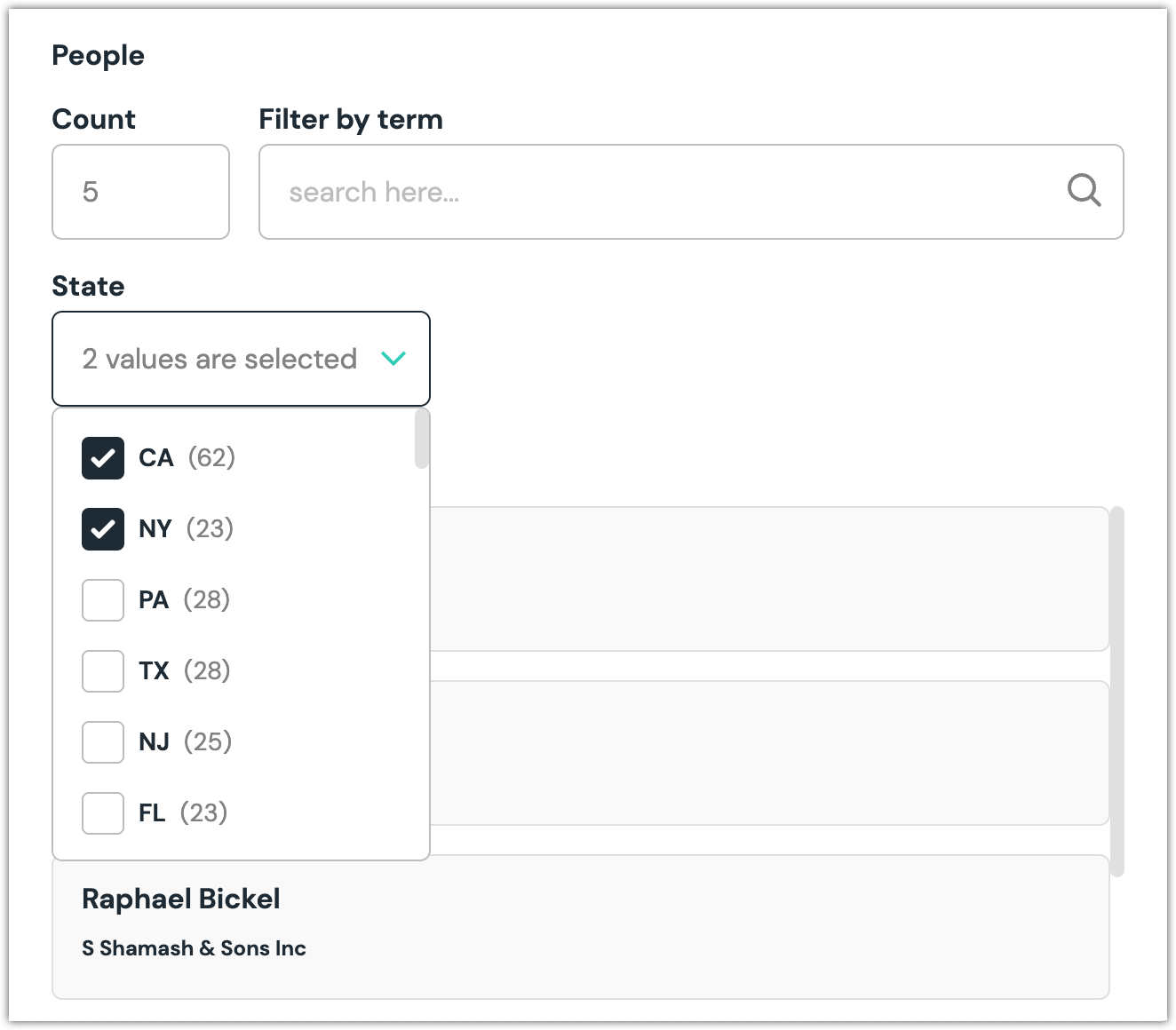
Edit parameter value
When you use a component with an Algolia Query parameter, by default the first five matching hits are included. You can control the following values on the query:
| Name | Description |
|---|---|
| Count | The maximum number of hits that are included. |
| Filter by term | The query matches on the specified text. |
In addition, if you have any facets configured, those are available as dropdowns. Facets affect the query in the following ways:
- When multiple values in a single facet are selected, an "OR" operator is used. For example, if you have a facet for "city" with the values "NY" and "CA" selected, a hit must match either "NY" OR "CA".
- When values from multiple facets are selected, an "AND" operator is used. For example, if you have facets for "city" and "state", a hit must match any "city" value AND any "state" value.
| Condition | How it is handled | Example |
|---|---|---|
| Single facet, single value for the facet | Hits match the specific facet value. | Only records with a state "NY". |
| Multiple values from a single facet | Hits match any of the specified values on the facet. | Only records with a state "NY" or "CA". |
| Multiple facets, single value for each facet | Hits match the specific facet value on all facets. | Only records with a state "NY" and a city "Glendale". |
| Multiple facets, multiple values for each facet | Hits match any of the specified values on all facets. | Only records with a state "NY" or "CA" and a city "Glendale" or "Pomona". |
Configure an enhancer
When a query is configured, Uniform only stores the settings needed to reproduce the search. Your front-end application must perform a query using those settings. Uniform provides an enhancer to simplify this process.
tip
Using the enhancer provided by Uniform saves you from having to write logic to interact directly with Algolia.
How Uniform stores the query
The following is an example of what Uniform stores for the parameter.
{
  "type": "algoliaQuery",
  "value": {
    "source": "default",
    "count": 5,
    "searchText": "inc",
    "facetsValues": {
      "state": [
        "CA",
        "NY"
      ]
    }
  }
}
There are several settings in this value:
- The query is limited to 5 hits.
- The search text "inc" is specified.
- The facet "state" is specified and the hits must have a "state" value that is either "CA" or "NY".
Add the enhancer
Uniform provides an enhancer so you don't need to write the API calls to Algolia to perform a search.
tip
For more information about the enhancer, see the package documentation.
Add the following npm packages to your front-end application:
algoliasearch
@uniformdev/canvas
@uniformdev/canvas-algolia
In a text editor, open the file where you retrieve the composition definition from Uniform.
About this step
You are looking for the code calls the async function
getComposition. The code below assumes the object returned is set in a variablecomposition.Add the following import statements:
import { EnhancerBuilder, enhance } from '@uniformdev/canvas';
import {
    createAlgoliaQueryEnhancer,
    CANVAS_ALGOLIA_QUERY_PARAMETER_TYPES,
    AlgoliaClientList,
} from '@uniformdev/canvas-algolia';
import algoliasearch from 'algoliasearch';
Add the following code:
const client = algoliasearch(
    '!!! YOUR ALGOLIA APPLICATION ID !!!',
    '!!! YOUR ALGOLIA SEARCH KEY !!!'
  ).initIndex('!!! YOUR ALGOLIA INDEX NAME !!!');
About this step
We recommend you moving the Algolia credentials to environment variables rather than hard-coding them in the front-end app.
Add the following code:
const enhancer = createAlgoliaQueryEnhancer({
  clients: new AlgoliaClientList({ client })
});
Add the following code:
 await enhance({
   composition,
   enhancers: new EnhancerBuilder().parameterType(CANVAS_ALGOLIA_QUERY_PARAMETER_TYPES, enhancer),
   context: {},
 });
About this step
This registers the enhancer to be used for any occurrence of the Algolia Query parameter.
Next steps
Now the parameter value in the composition is mutated to include the hits from the search query (instead of just being the settings for the search).
Algolia Record
This parameter type allows a Uniform user to select one or more hits from a Algolia index.
Add parameter to component
In order to allow a user to select hits from Algolia, you must add a parameter to a component. The parameter is used to store the identifiers to the selected hits when the user selects hits.
In Uniform, navigate to your component.
Add a new parameter using the parameter type Algolia Record.
The following values can be specified:
Name Description Selected Link Source The index used for the query. Title Field Name A field from the index that can be displayed in parameter editing mode. Allow multi-select If ticked, the user is able to select more than one hit. Required If ticked, the user must select at least one hit. 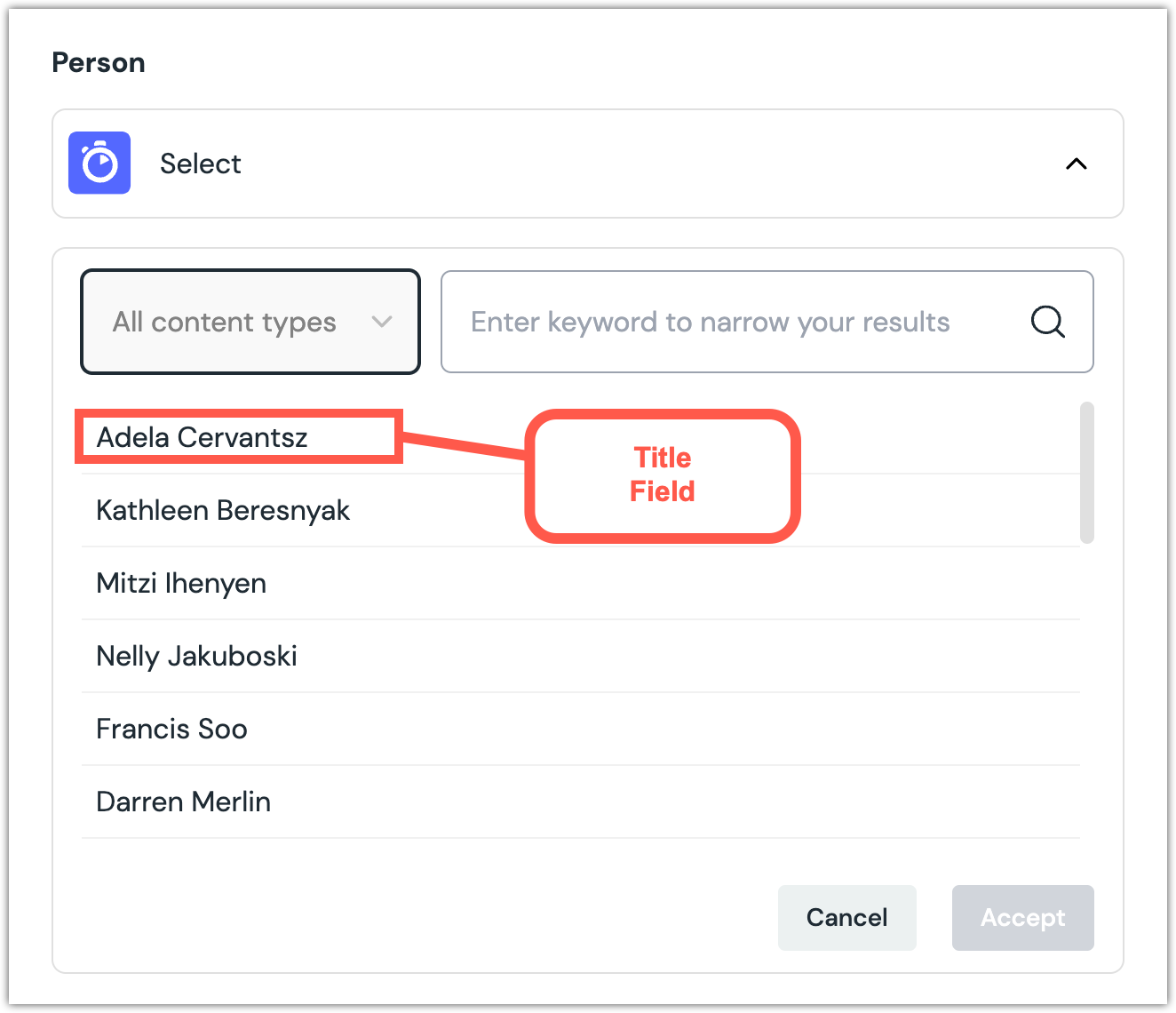 Algolia Record parameter with preview search results displayed.
Edit parameter value
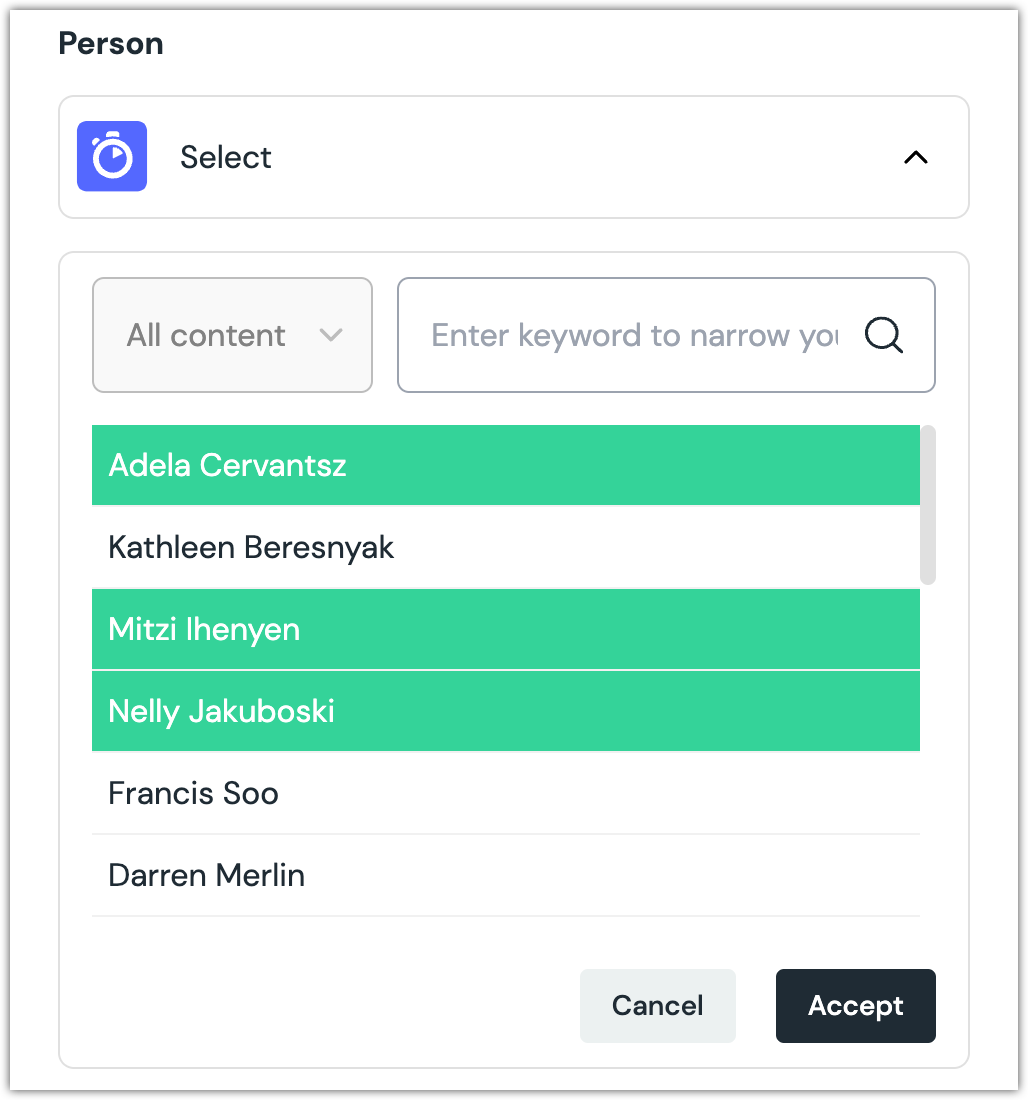
When you use a component with an Algolia Record parameter, all hits from the index are displayed.
Click Select.
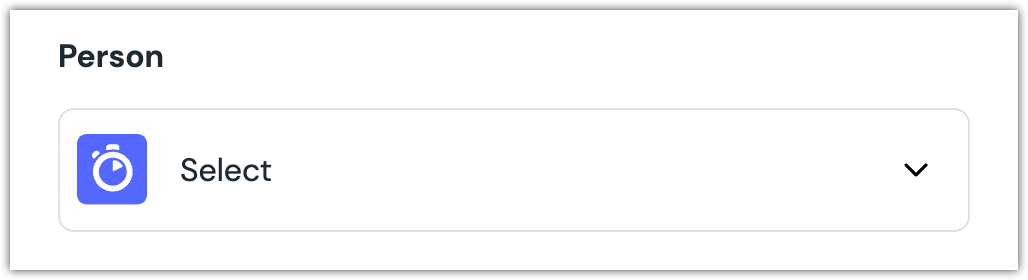
Click the hit(s) you want to select.
About this step
A couple of filters are available. The text box allows you to filter by keyword.
Click Accept to save your selection.
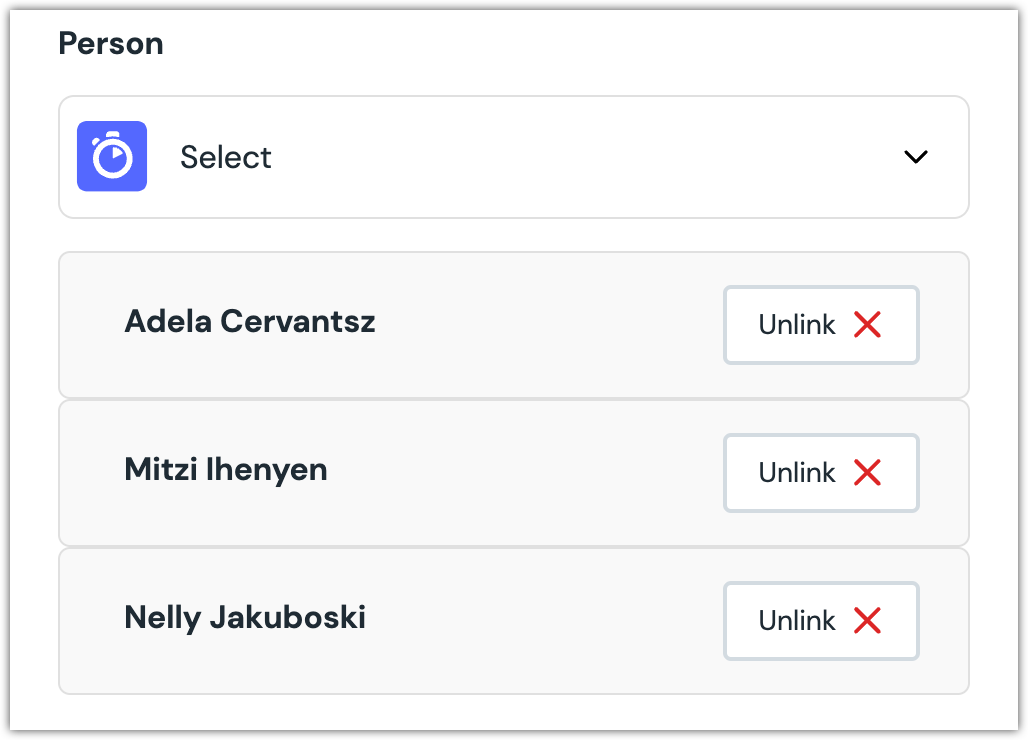
You will see details about the entry you selected, including the title and some metadata.
About this step
If you want to unselect the hit, click Unlink.
Configure an enhancer
When a hit is selected, Uniform only stores the identifier for the hit. Your front-end application must retrieve the details for the hit. Uniform provides an enhancer to simplify this process.
tip
Using the enhancer provided by Uniform saves you from having to write logic to interact directly with Algolia.
How Uniform stores the selected hit
The following is an example of what Uniform stores for the parameter.
{
  "type": "algoliaRecord",
  "value": {
    "objectIDs": [
      "saas-sample-data-99",
      "saas-sample-data-97",
      "saas-sample-data-96"
    ],
    "source": "default"
  }
}
Add the enhancer
Uniform provides an enhancer so you don't need to write the API calls to Algolia to retrieve data for hits.
tip
For more information about the enhancer, see the package documentation.
Add the following npm packages to your front-end application:
algoliasearch
@uniformdev/canvas
@uniformdev/canvas-algolia
In a text editor, open the file where you retrieve the composition definition from Uniform.
About this step
You are looking for the code calls the async function
getComposition. The code below assumes the object returned is set in a variablecomposition.Add the following import statements:
import { EnhancerBuilder, enhance } from '@uniformdev/canvas';
import {
    createAlgoliaRecordEnhancer,
    CANVAS_ALGOLIA_RECORD_PARAMETER_TYPES,
    AlgoliaClientList,
} from '@uniformdev/canvas-algolia';
import algoliasearch from 'algoliasearch';
Add the following code:
const client = algoliasearch(
    '!!! YOUR ALGOLIA APPLICATION ID !!!',
    '!!! YOUR ALGOLIA SEARCH KEY !!!'
  ).initIndex('!!! YOUR ALGOLIA INDEX NAME !!!');
About this step
We recommend you moving the Algolia credentials to environment variables rather than hard-coding them in the front-end app.
Add the following code:
const enhancer = createAlgoliaRecordEnhancer({
  clients: new AlgoliaClientList({ client })
});
Add the following code:
 await enhance({
   composition,
   enhancers: new EnhancerBuilder().parameterType(CANVAS_ALGOLIA_RECORD_PARAMETER_TYPES, enhancer),
   context: {},
 });
About this step
This registers the enhancer to be used for any occurrence of the Algolia Query parameter.
Next steps
Now, the parameter value in the composition is mutated to include details for the hits that were selected (instead of just being the identifiers for the hits).