Browser extension
Uniform provides a browser extension for Google Chrome that enables users to see how Uniform is classifying them and to make changes to that classification.
tip
The browser extension is useful when testing personalization. It allows you to set the classification manually so you can see the effect on your web application immediately.
Install extension
The Uniform Context browser extension is available on the Chrome Web Store.
Are Uniform dev tools enabled?
To determine whether Uniform dev tools are enabled on your web application:
Pin the browser extension to your toolbar.
Navigate to your web application.
If the extension is grayed out, Uniform dev tools are not enabled.
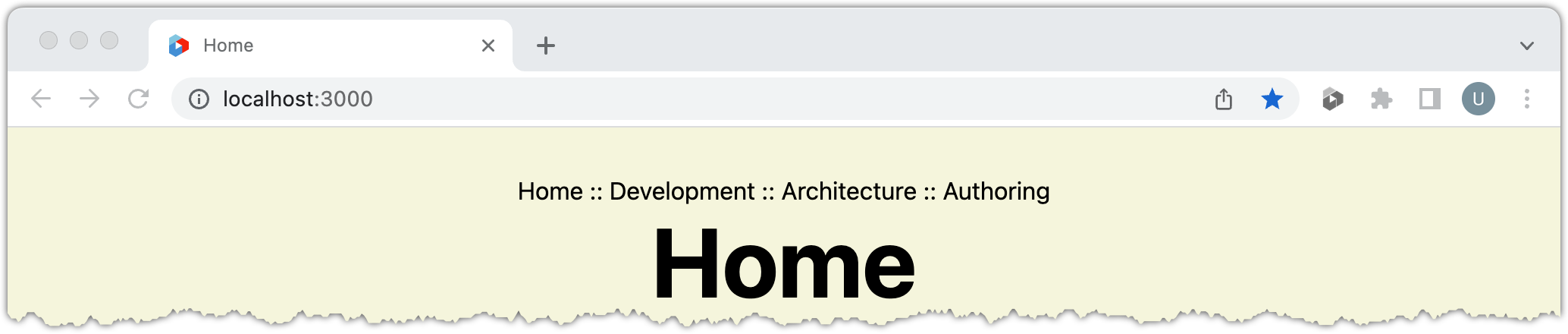
Enable Uniform dev tools
Uniform dev tools must be enabled on the Uniform context in your web application in order for users to be able to use the browser extension. Uniform dev tools are enabled by adding a plugin to the Uniform context object.
The code needed to enable Uniform dev tools in your web application depends on the front-end framework that is used.
- React
Open the file
/pages/_app.js.Add the following import at the top of the file:
import { enableContextDevTools } from "@uniformdev/context";Find the code where the Uniform context object is created. It will look something like the following:
const context = new Context({
  manifest,
});
Add the following code:
const context = new Context({
  manifest,
  plugins: [
    enableContextDevTools(),
  ]
});
Connect the site
The browser extension uses the Uniform context manifest to understand what kind of classifications the web application uses. In order to keep the manifest as small as possible, public IDs are used instead of names. For example, if you have a signal named "Email Campaign" with a public ID "ec", the browser extension only knows the signal as "ec", so that is all it can display.
The browser extension allows you to connect the site to a Uniform project. You do this by providing the extension with credentials that it can use to get the names that correspond to the public IDs.
Before you start
You need a Uniform API key and project ID in order to connect the site to a Uniform project. The API key requires all of the permissions in the Uniform Context section.
- In your browser, navigate to your web application.
- Open the browser extension.
- Click Settings.
- Enter values for the following fields:
- Uniform API key
- Uniform Project ID
- Click Save.
What has changed?
Now, instead of seeing the public IDs throughout the browser extension screens, you will see the names. This makes it much easier for you to understand the information being displayed.